Project and timeline: build your film shot by shot
Since 0.9.0, Create a video always works in a project, on Windows and Mac: a series of shots, each rendered on its own, that you edit together on a timeline, then export as one film. The former Montage screen is gone: everything happens here. On a phone, the screen stays as it was.
How to render a shot (references, mode, length, extension) is explained in Create a video.
The project
- New project opens a small window: the Title, the Location of its folder, and the Project settings: Quality or Ultra, format, resolution, sound, and the frame rate in Quality only (Ultra is always 24 fps). They are taken from your last project; Enter creates it. The project's folder bears its title, easy to find on your disk; a name already taken becomes "Title (2)". Left empty, the title is Untitled project until the first render, which gives it a title of two to five words on its own; click the name to change it.
- The first time, with no project yet, the New project window opens first, blank. Close it without creating and the app opens an Untitled project.
- Projects lists them: New project, Import a project, Duplicate, and Delete with a way to undo.
- A project is a series of shots. Each one is rendered on its own. On a shot's card, the mode, format, resolution, frame rate and sound fit on one folded line, Settings, with their summary (for example "Ultra · Landscape · 720p · 24 fps · With sound"). On shot 01, a click unfolds it to change them, as long as no other shot is rendered: the first shot rendered sets them for the whole project. On the next shots, the line carries a padlock and says they are set by shot 01, with a link to it. The length and the output format (MP4 / MOV) stay visible under the line, shot by shot.
- Reuse on a clip of the Gallery adds it as a new shot of the open project, with its text, its references and its settings.
The timeline
The timeline opens as a drawer at the bottom of the screen (key T).
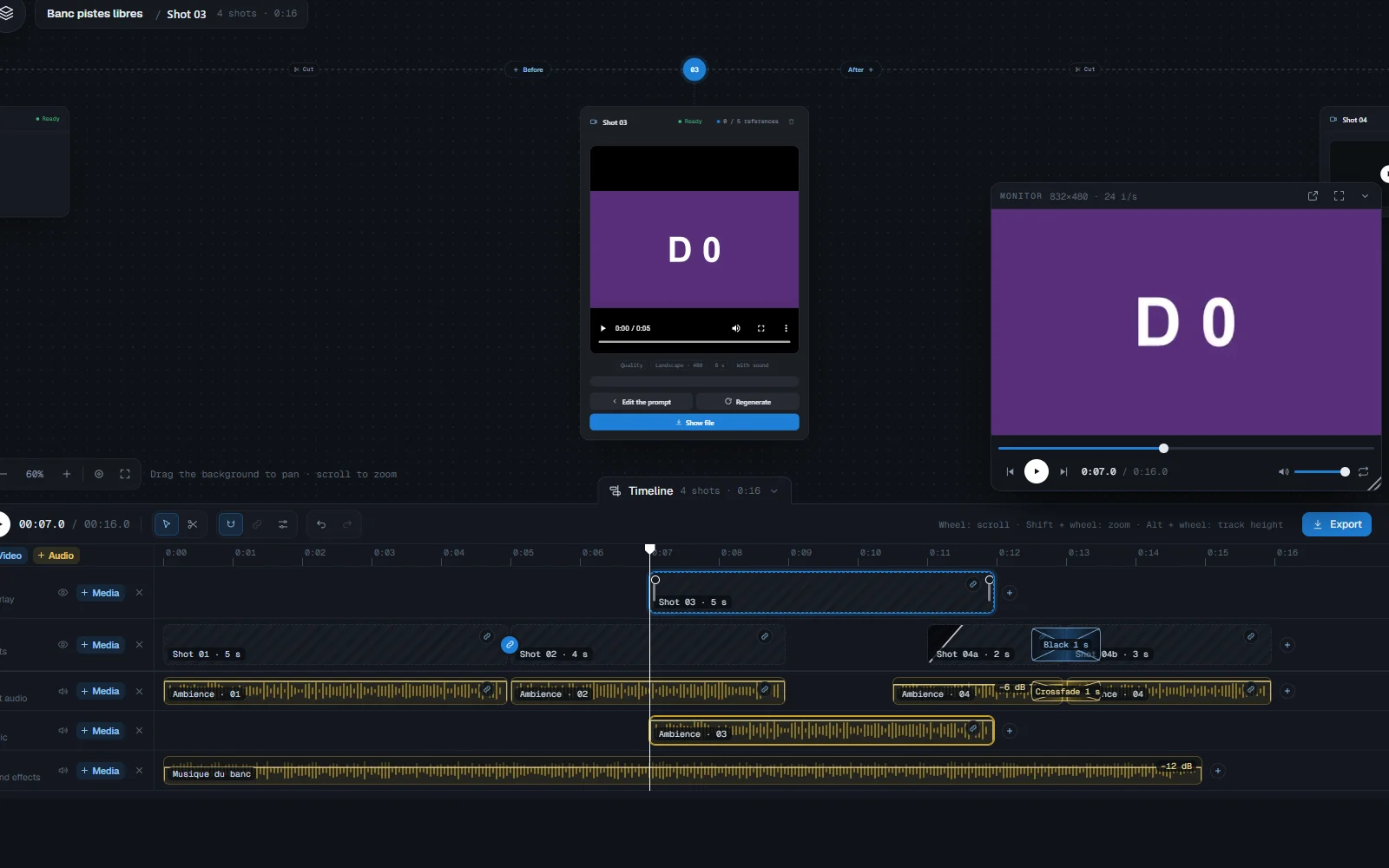
- Every track takes everything. A video track takes generated shots, clips, images and titles; an audio track takes the sound of a shot, music, sound effects and voice-overs. Add as many tracks as you like with + Video and + Audio; each track can be renamed, hidden and removed.
- The order of the shots follows time. A shot's number (01, 02...) is its place in the film, all tracks together. When two start at the same time, the lower track comes first.
- A shot's sound stays tied to its picture: they move together. Unlink separates them. On the sound, J and L cuts start it before the picture or carry it on after, with the volume and fades.
- An extension (After / Before) holds as long as the two shots touch on the same track: they move together as one block. Pull them apart and the extension is detached, the join becomes a cut.
- The film: the lowest video track is the background, the tracks above it are overlaid on top, and the highest one is the one you see. A spot empty on every track plays as black and silence. All the sound is mixed.
- The mouse wheel scrolls through time; Shift + wheel zooms under the pointer; Alt + wheel changes the height of the tracks.
- Between two pictures, choose a Straight cut or a dip to black; between two sounds placed end to end, a cut or a crossfade.
- Cut (key S) splits a clip at the playhead. Drag an item past the middle of another on the same track and they swap places. Link clips into a group to move them together. Undo and Redo (Ctrl+Z, Ctrl+Shift+Z) cover every action.
- Drop a video, an image or a sound from your file explorer onto a track, or use Browse in the Add window: it lands on that track, at the second where you let go, and a video becomes a clip. A file that does not fit the track is refused with a message.
- Sounds, in Assets > Elements, holds your music and sound effects. Import a folder adds all the sounds of a folder at once: they stay where they are on your disk, nothing is copied. An imported sound is marked, and deleting a sound used by a timeline asks you to confirm.
- A file added from the computer is linked, never copied. If it was moved or deleted, the app says it is not found and offers Relink; the export waits until it is relinked.
The monitor
The Monitor plays the film. It floats above the screen: move it, put it in Full screen, or detach it into its own window, on a second screen for example. Its controls: play, frame by frame, loop and volume. It follows the project's frame rate, like the export of the film: an Ultra project plays and exports at 24 fps.
Import a project
On the Projects page, click Import a project, drop a .tendre file onto the page, or double-click the file (it opens the app). The project arrives as a copy next to the others ("Title (2)" if the name is taken), with its shots, its timeline, its titles and its settings. References already in your Library are reused, the others are created. Whatever is missing (a reference or a media left out of the file) is relinked afterwards in the project. Shots that arrived without their video show To render.
Export
Export offers two choices:
- Video: one file of the whole edit, in MP4 or MOV. MOV keeps the quality of the sources (4:4:4 color, uncompressed sound), MP4 is high quality, lighter and plays everywhere. Both have the same size, frame rate and sound. By default, the export takes the output format chosen in the generator. Choose the folder and the name: a file with the same name is replaced. The film is also added to the Gallery.
- Project: the whole project in one
.tendrefile, easy to send. Include the media adds every video (those of the shots, their source videos, the imported files). Unchecked, the file keeps only the timeline, the titles and the settings, a few KB: the shots arrive To render, and an Ultra shot cannot be extended without its videos. Include the references adds the characters, locations, objects, styles, outfits and motions, to tick one by one; a reference left unchecked keeps its name and its @ in the project. The estimated size follows the boxes. On the Projects page, Export project opens straight on Project, for any project.
Agents export a project folder through the Pro API: see Export the project folder.
For a long continuous shot, see Chaining; to generate a first clip, Text to video.