Transition: a video that moves through your keyframes
See the featureTransition makes a video that moves through the images you place on a timeline: a Start image, an End image, and up to four keyframes in between. The generator creates the motion from one to the next. It runs locally on your graphics card or online on our machines.
The timeline
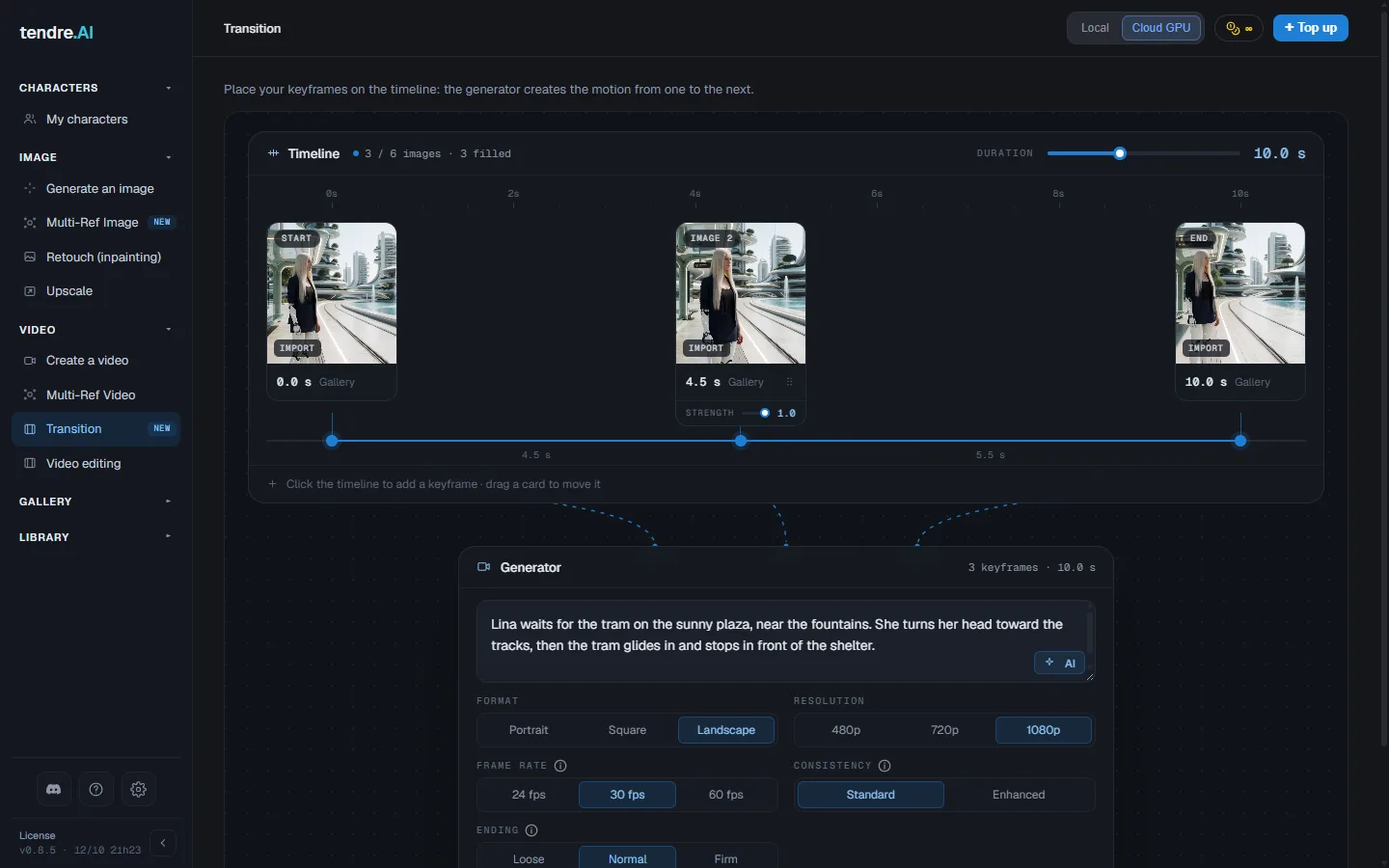
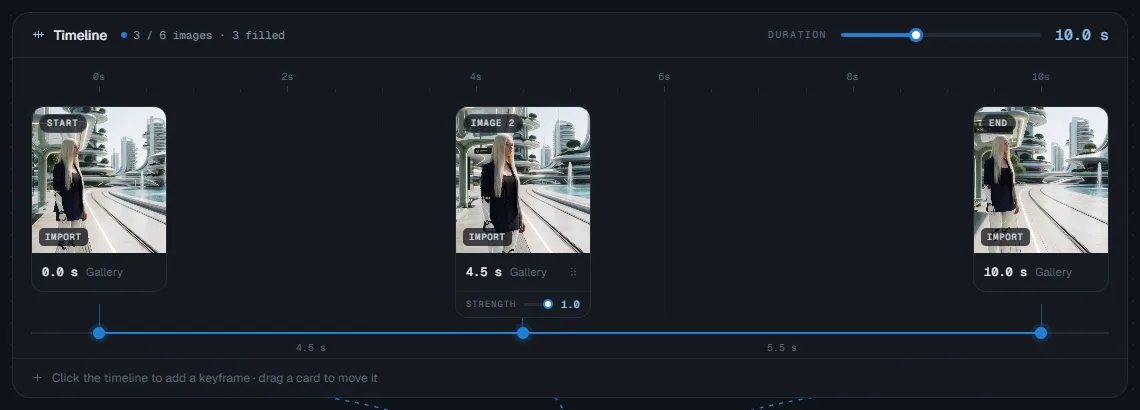
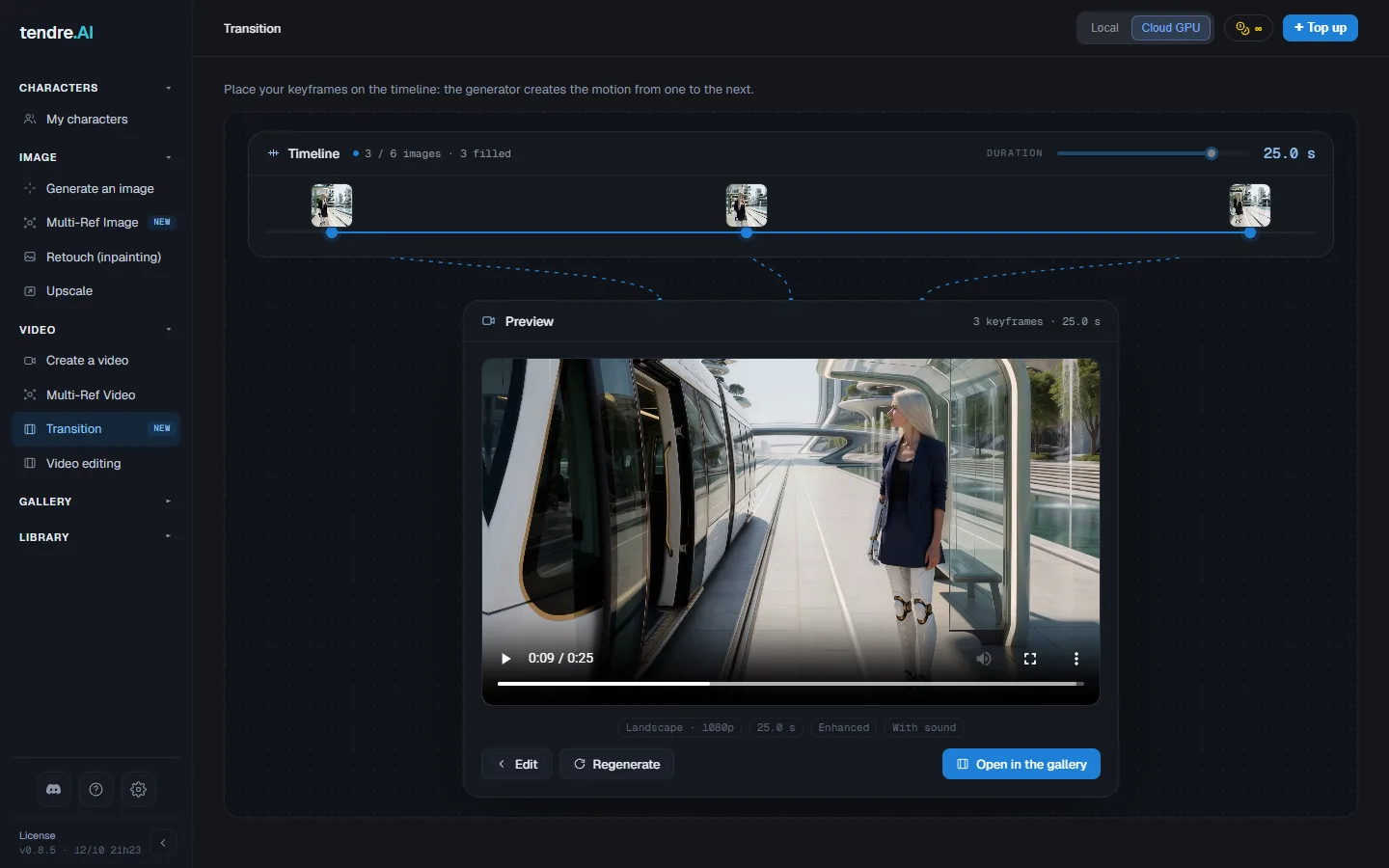
The top of the screen is the timeline: a "Start" card on the left, an "End" card on the right, and the clip duration above.
- Add a keyframe: click the timeline at the moment you want, or click "Add an image". Four keyframes at most, besides the start and the end, with at least half a second between two images.
- Move: drag a card along the timeline.
- Strength: each keyframe has its own strength, from 0.1 to 1. The higher it is, the closer the video sticks to the image at that moment. Lower, the video takes inspiration from it and stays free to move.
- Remove: the cross on a card deletes it.
- Duration: the slider above the timeline. Keyframes keep their relative position when you change it.
Every image is optional: with no image at all, Transition makes a video from the text alone. A keyframe card you have placed must get an image, though ("A keyframe is empty: add an image or remove it"). Locally, an end image requires a start image.
Choosing an image
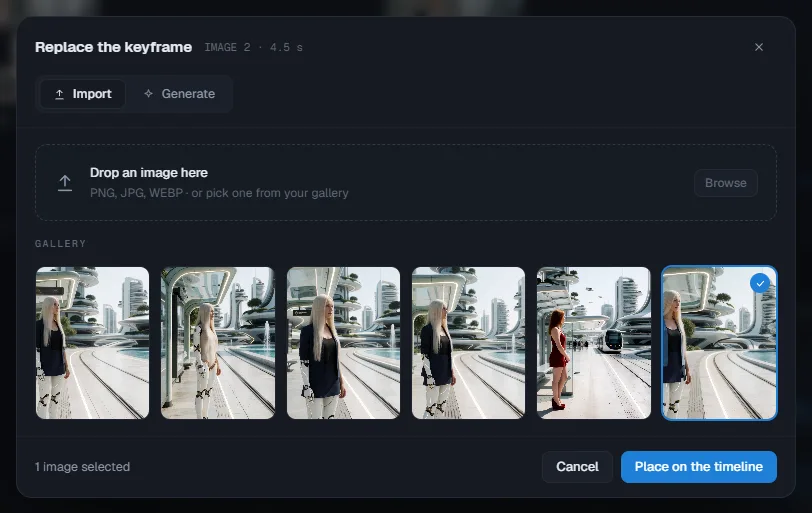
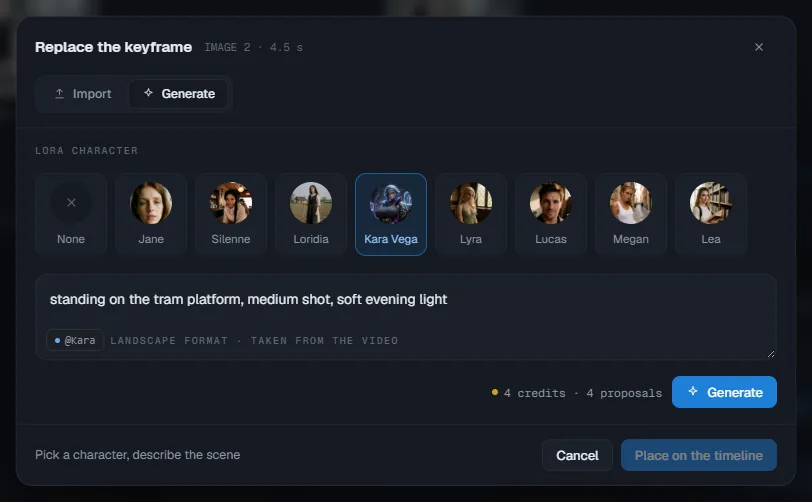
Clicking an empty card opens the "Add a keyframe" window, with two tabs:
- Import: drop an image (PNG, JPG, WEBP), click "Browse", or pick it from your Gallery.
- Generate: choose a character (its LoRA) or "None", describe the scene, and the generator offers four images in the clip's format. The price of the proposals is shown beforehand (or "local" on your graphics card).
Pick the image, then "Place on the timeline".
Describing the motion
The field under the timeline describes what happens between the images: the motion, the camera, the mood, and a line of dialogue in quotes if a character speaks. The AI button rewrites your idea into a full text, in the format the generator understands best.
The settings
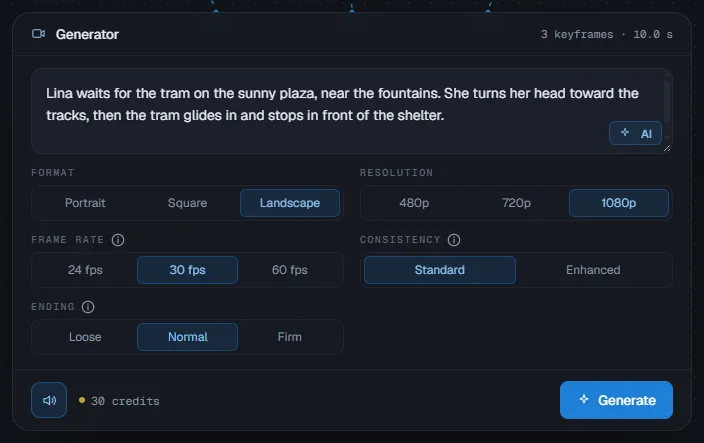
- Format: Portrait, Square or Landscape.
- Resolution: 480p, 720p or 1080p.
- Frame rate: 24, 30 or 60 frames per second, 30 by default. 60 is the smoothest. The maximum duration follows the number of frames: up to 30 s at 24 frames per second, 24 s at 30, 16 s at 60 (12 s at 60 with sound and keyframes or an end image).
- Consistency: Standard or Enhanced. Enhanced consistency holds faces, surroundings and motion better from one end of the clip to the other, but the render takes longer. It is required beyond 20 s (15 s with an end image). Online only for now.
- Ending (shown when an End image is placed): how exactly the video must end on it.
- Loose: the change spreads gently over the whole duration; the last frame may not quite match it.
- Normal: the balance, the default setting.
- Firm: the video ends exactly on the end image; if the start and the end are very different, the change can bunch up in the last frames and look like a cut.
- Sound: the speaker button turns it on or off. With sound, the generator creates the audio track together with the picture (ambience, noises, voices).
The Generate button shows the price in credits, or "Local, free".
Local or online
- Local: free, on your graphics card, in standard consistency, up to 20 s at 24 frames per second (15 s with an end image).
- Online: every duration, and enhanced consistency. Beyond 20 s, the format's price doubles, and long clips are for licensed users.
Generating and finding the clip
During the render, the generator shows the progress. Online, if a machine has to start first, the screen says so ("Waiting for an online machine"): this can take a few minutes.
At the end, the Preview plays the clip:
- Edit goes back to the settings, with the same images;
- Regenerate makes the clip again with another seed;
- Open in the gallery finds it among your videos.
Frequently asked questions
Why did "Enhanced" select itself? Beyond 481 frames, that is 20 s at 24 frames per second (16 s at 30, 8 s at 60), or beyond 361 frames with an end image (15 s, 12 s, 6 s), only enhanced consistency holds the duration. The setting locks and the screen shows "Required beyond … s".
Why can't I add a keyframe at this spot? "Too close": the spot is less than half a second from another image. "Limit reached": the timeline already has four keyframes besides the start and the end.
Why does the Generate button stay greyed out? The text is missing ("Describe the motion to generate"), or a keyframe card is empty ("A keyframe is empty: add an image or remove it").
Why won't my transition run locally? Beyond 20 s, or 15 s with an end image, the render runs online for now, like enhanced consistency. Locally, an end image also requires a start image.
How much does a transition cost? Locally, nothing. Online, the price of a video with the same format, the same resolution and with or without sound; beyond 481 frames (20 s at 24 frames per second), the format's price doubles. The exact price shows on the Generate button before you start.
Can the duration be automatic? No: in Transition, you always set the duration with the timeline slider.
Where do I find my clip, and how do I make it again? It is saved in the gallery, with your videos; "Open in the gallery" takes you there. From the gallery, "Reuse" reopens Transition with the text, the settings and the position of the keyframes; the images themselves have to be placed again, the cards come back empty.
See also
- Chaining: extend a clip into a longer scene.
- Image to video: animate a single image.
- Create a video: several characters, objects and a location in the same clip.