Inpainting: edit an image, or only the areas you select
See the feature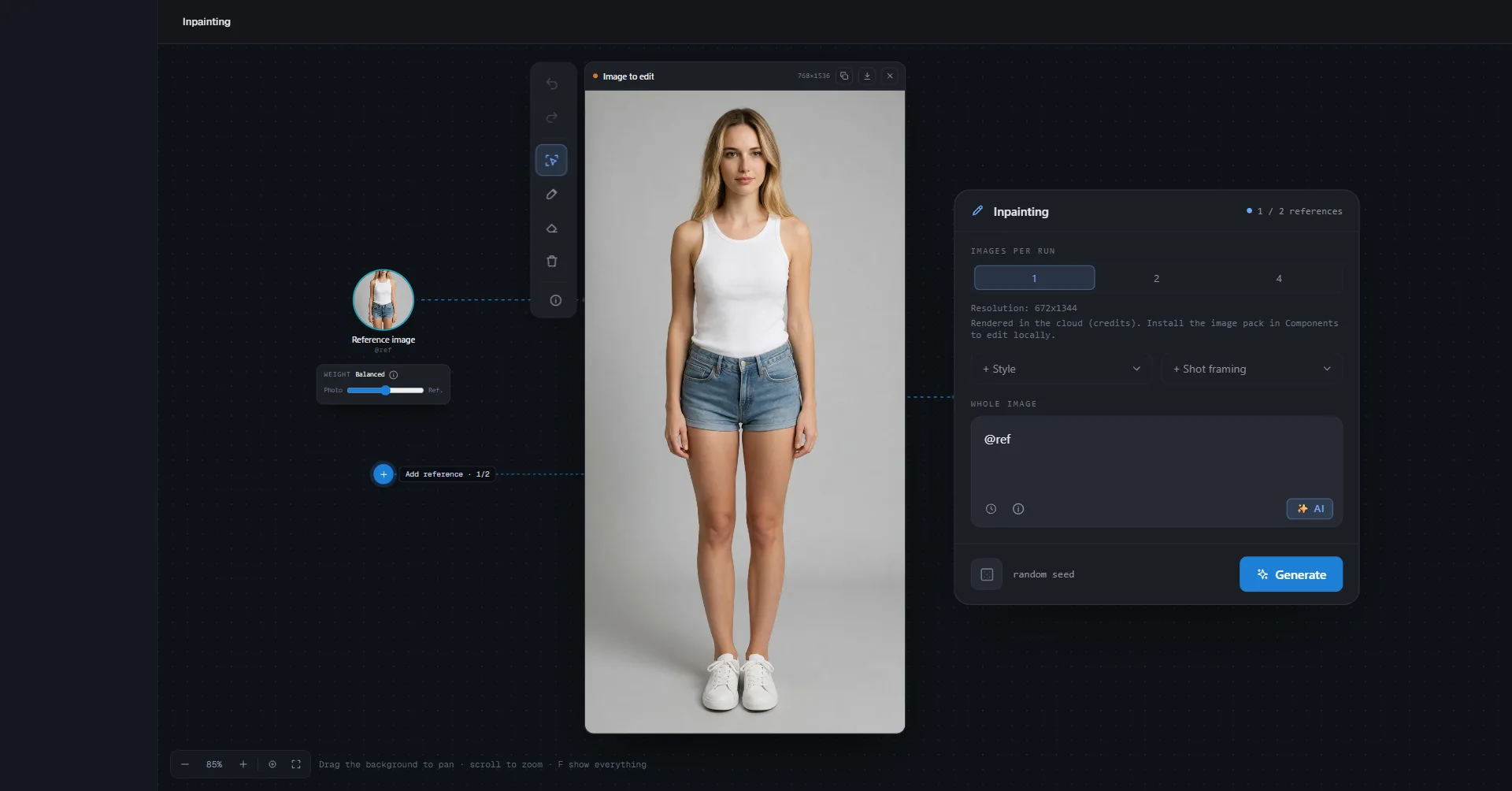
Inpainting changes an image from a sentence: the whole image, or only the areas you select. Since 0.9.1 it is a space, like Create a video: the image stays in the middle, on the Image to edit card, and you move around it. Drag the background to pan, scroll to zoom, Z zooms to the image and F shows everything.
The settings card
The card on the right can be moved anywhere (Drag to move). It holds:
- Images per run: 1, 2 or 4 variants of the same edit.
- The resolution, + Style and + Shot framing.
- The large Whole image field: without any area, what you write there edits the whole image. The clock opens your last prompts, the AI button improves the text.
There is no fidelity or steps setting any more: the app sets them. On top of the image card, Copy the image puts it in the clipboard and Save the image as… saves it where you like, for the starting photo as for the result.
Select an area by detection
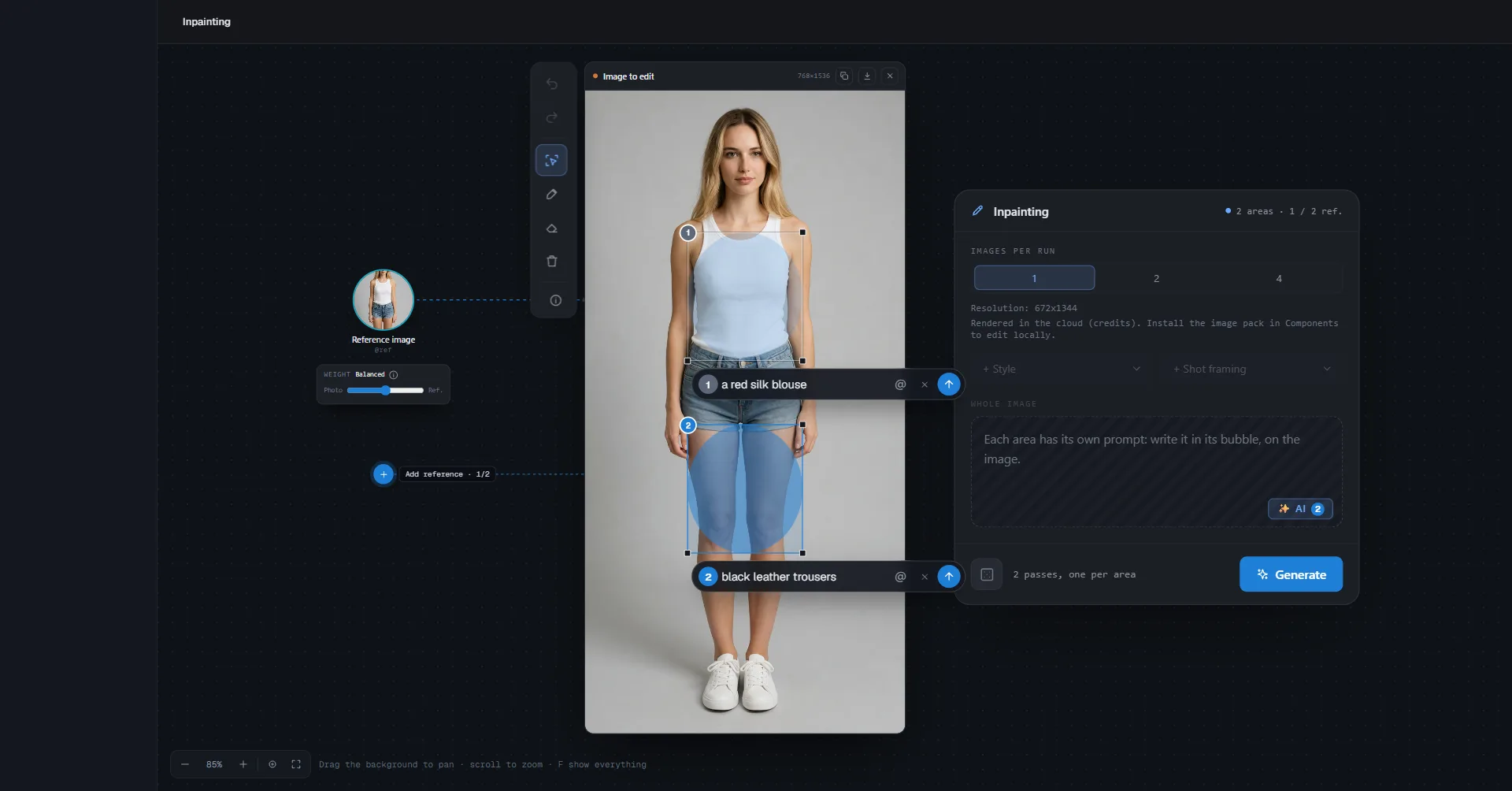
Pick Select by detection in the bar on the left of the image.
- Left-click an object: it is selected and becomes a numbered area.
- Right-click removes a part of it. Further clicks on the chosen area refine it: left adds, right removes.
- Or drag a frame around what you want.
- To correct by hand, the Brush adds to the area and the Eraser removes from it. Pull a corner of the area to enlarge or shrink it: it is detected again in the new frame.
Up to 4 areas. Each one has its bubble on the image, What changes here: write the change there, cite a reference with the @ button, improve the text with the AI button, and press the arrow (or Enter) to generate. Hold a bubble by its number to move it; a double-click puts it back. Remove the area deletes it.
To take an object away, write it in the bubble: "remove it", "remove the bag". Without an area, write it in the Whole image field ("remove the car on the left"). Remove the area only removes the area itself, not the object.
As soon as an area exists, the Whole image field is greyed: each area has its own prompt, in its bubble. Each area is edited in turn and the rest of the image does not move. The app chooses on its own how to treat each area: redraw it to put something else there, or keep its shape and change its colour, material or light.

The first time, a short walkthrough shows the three gestures; the (i) of the bar opens it again. Ctrl+Z undoes, Ctrl+Shift+Z redoes (Cmd on Mac).
References
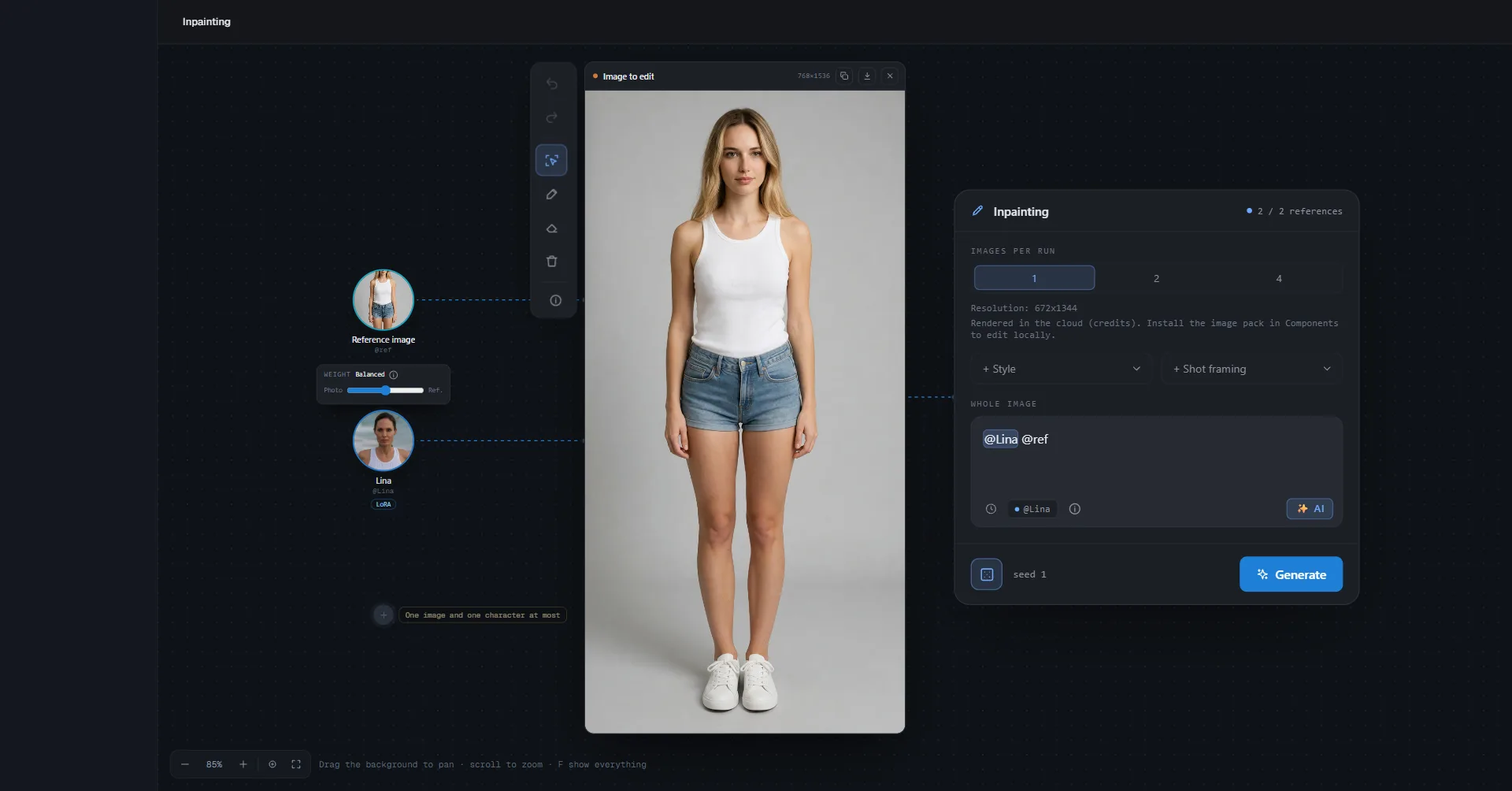
Add reference places around the image either an image (from the Gallery, your computer, or an object, animal or outfit of the Library), with a Weight slider between Photo and Ref., or a character. One image and one character at most. Cite them in the text by their @.
A character cited in an area really takes its face there. Without an area, "replace the woman with @Name" finds the person in the photo and redraws them as the character.
Price, on your computer or in the cloud
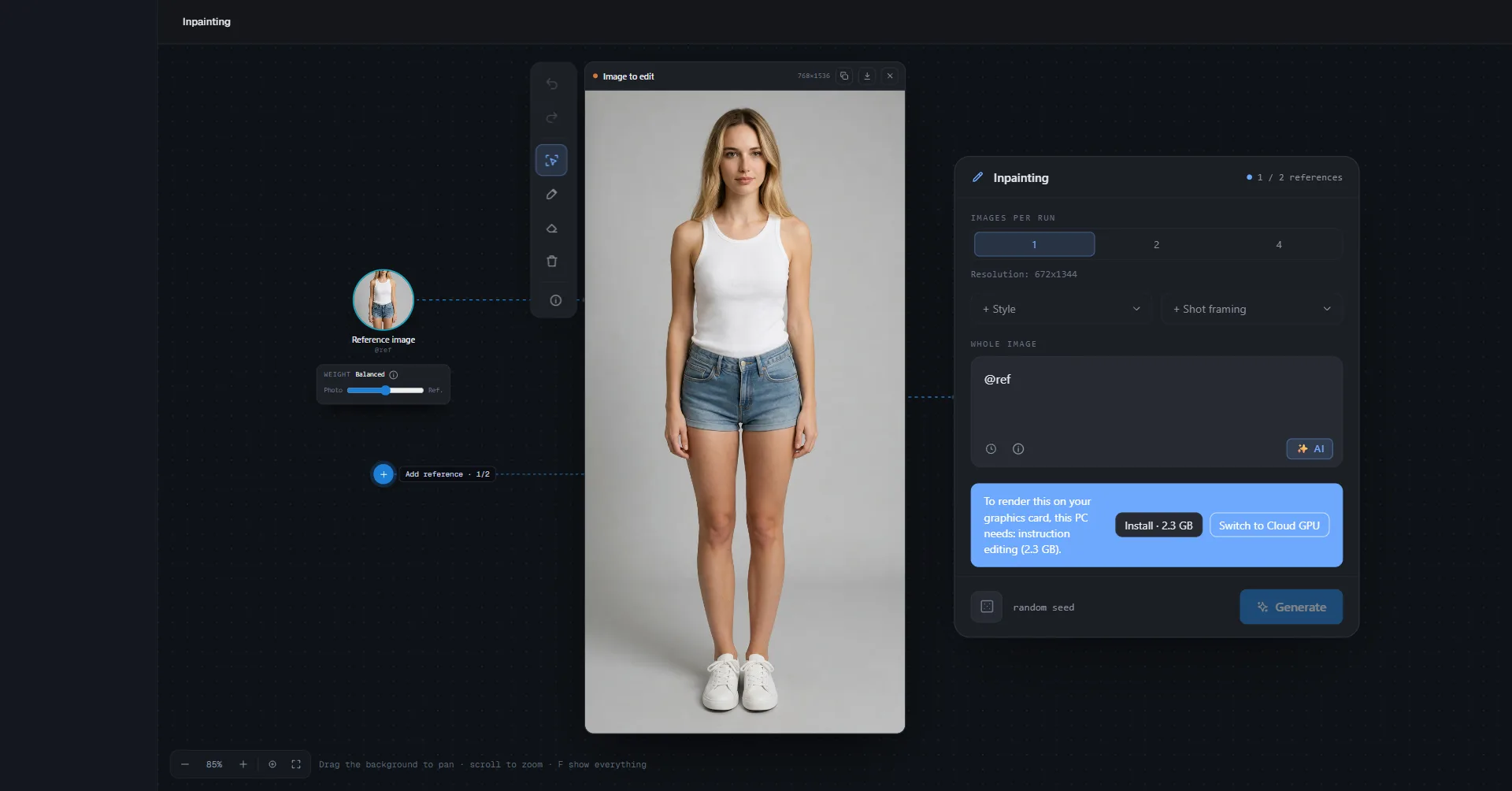
- On your graphics card: everything is free, detection included. If something is missing on the PC, the screen says so with its size and offers Install; Switch to Cloud GPU is the other choice (about 25 GB when nothing is installed yet).
- On a PC without a capable card, and on Mac: detection still runs on your machine, for free (a small download of about 140 MB the first time); the edit itself goes through Switch to Cloud GPU.
- In the cloud, with an activated licence: 1 credit per image produced, so variants × areas (4 variants on 2 areas = 8 credits). Clicks to detect are free; an edit that uses an area detected in the cloud costs 1 credit more, once. The total shows on the button before you click.
To put a character or an object from your Library into a new image, see Create an image.