Multi-Ref Video: up to four characters and a setting in one clip
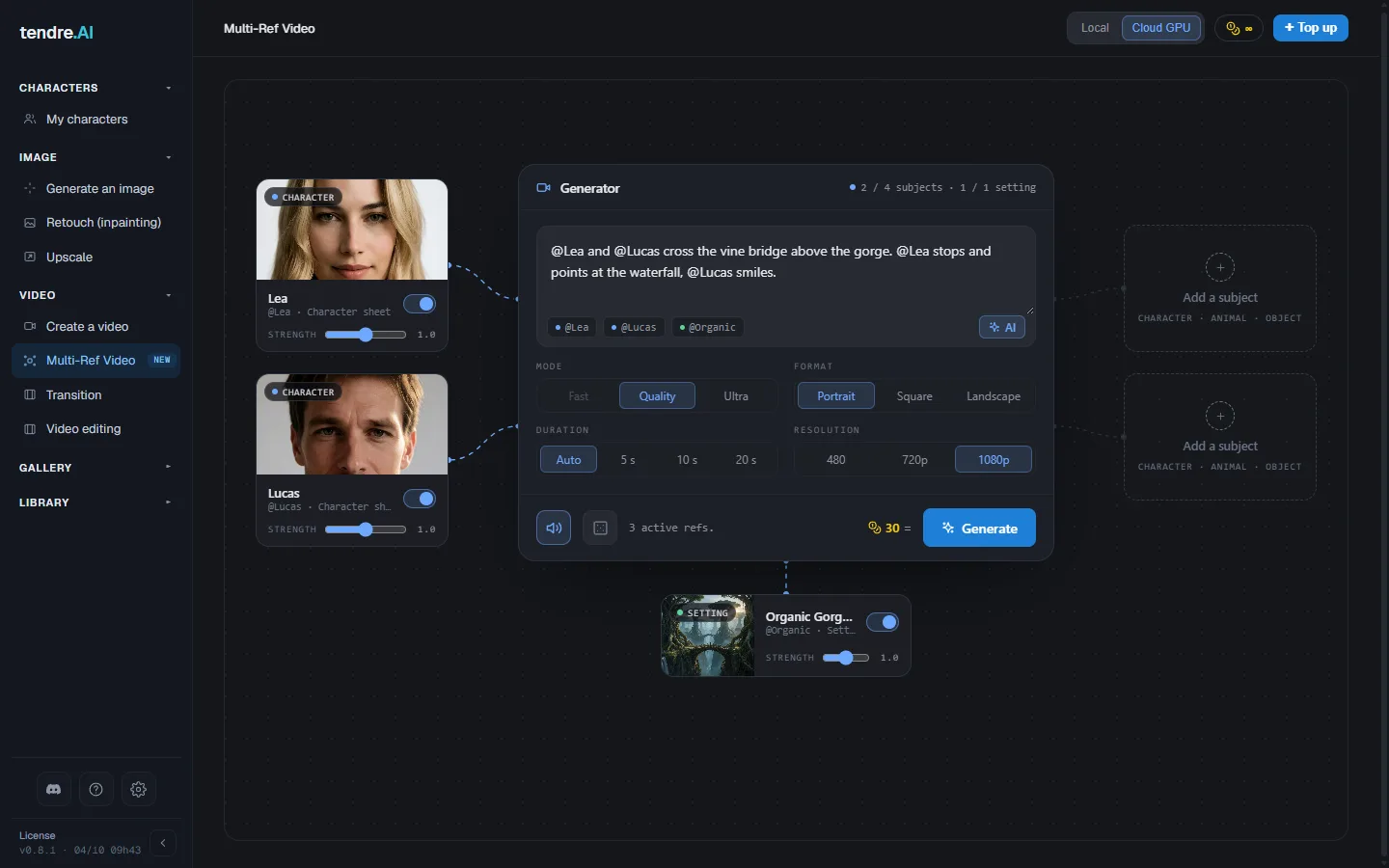
Multi-Ref Video makes one clip from references: up to four subjects (characters, animals, objects) and one setting, connected to the generator, then a scene you describe in your own words, calling each reference by its name. The same characters come back from one clip to the next, together, in the same place.
Start with a character sheet, not a LoRA
This is the step that decides whether a character looks like itself. Multi-Ref Video does not use the LoRA. A character's likeness comes from its character sheet: five reference views of the same character (Bust, front; Bust ¾ left; Bust ¾ right; Full body, front; Full body, back or profile).
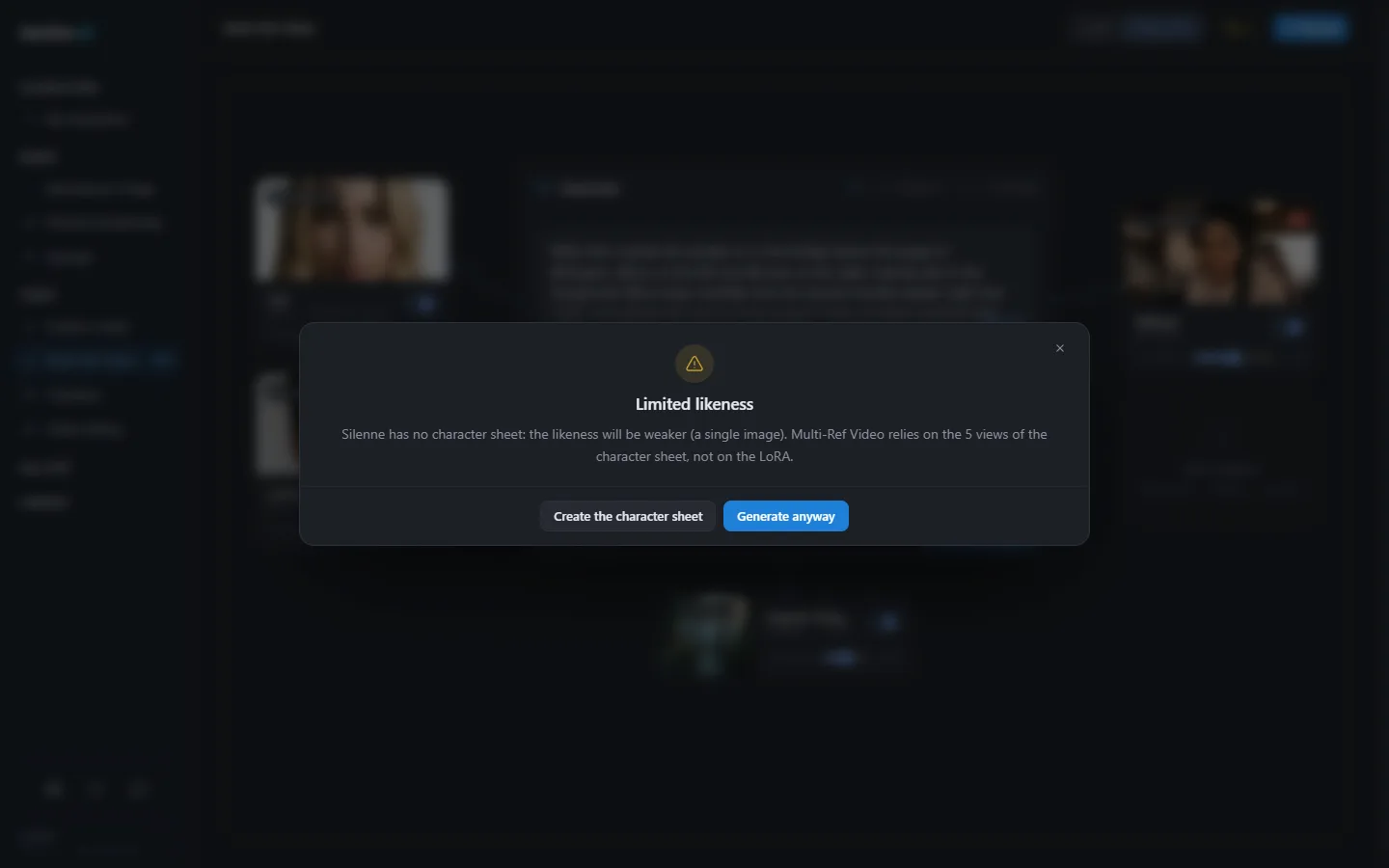
A character without a character sheet is rendered from a single image, and the likeness is clearly weaker. It is the most common surprise: a character with a well-trained LoRA but no sheet comes out as a loose version of itself.
The app flags it. In Multi-Ref Video, such a character shows No character sheet, and a click opens its profile. If you click Generate with one connected, a Limited likeness window offers Create the character sheet or Generate anyway.
To create one, open My characters, pick the character, then its Character sheets section, and click New sheet. Drop your own images, generate the views from the character's characteristics (with its image LoRA when it has no photo), or complete the missing views from the ones you have. Make one sheet per outfit or attitude: when you connect the character, Multi-Ref Video asks which sheet to use. Everything is explained in Character sheets.
Creating a character needs a licence. In the demo, Lea and Lucas come with complete character sheets, so you can try right away.
Objects, animals and settings
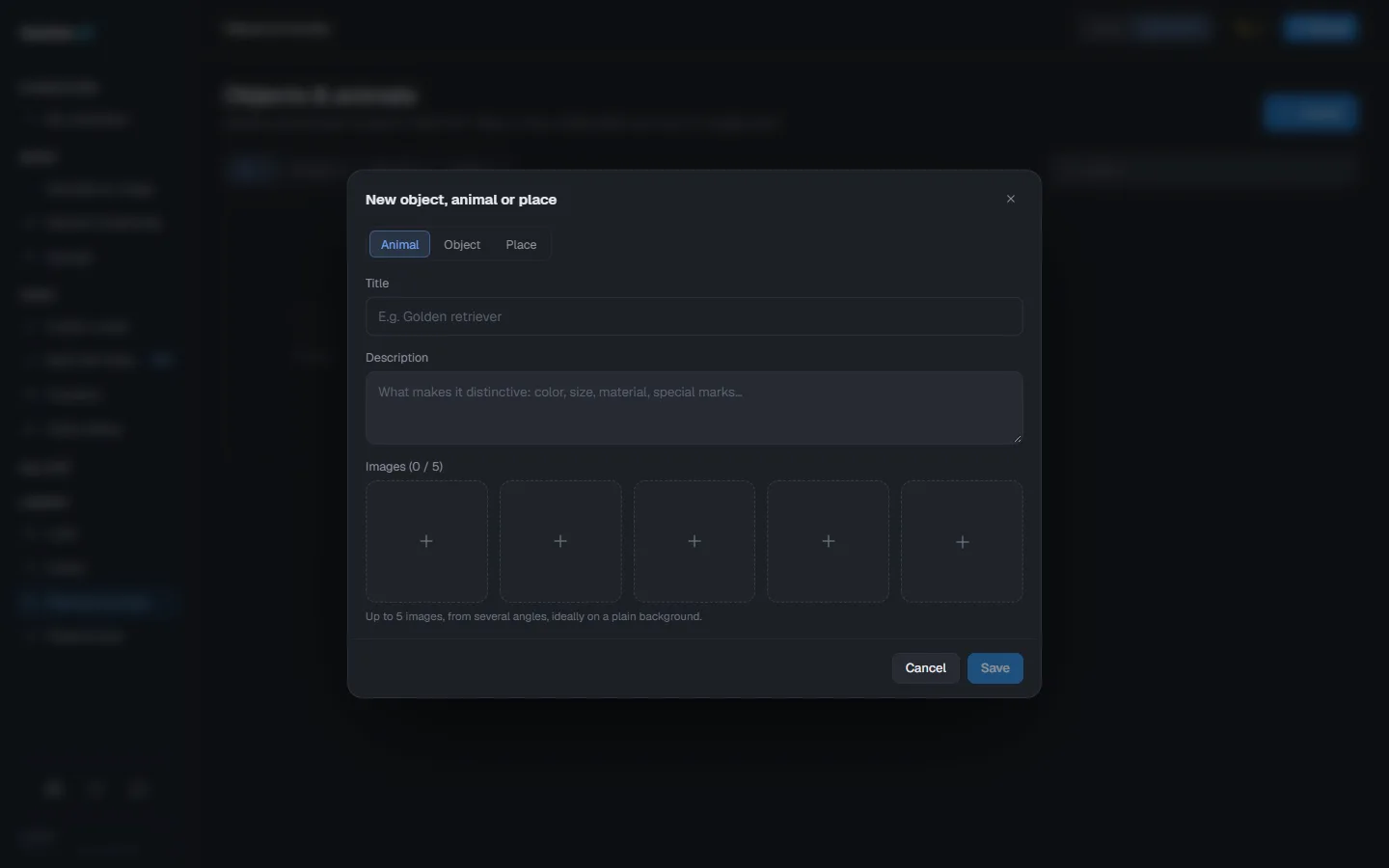
Characters are not the only references. In the Library, two pages hold the others: Objects & animals and Places & sets. Each item gathers up to five images, a title and a description, and connects to Multi-Ref Video the same way as a character. A clip takes one setting at most.
Build the scene
-
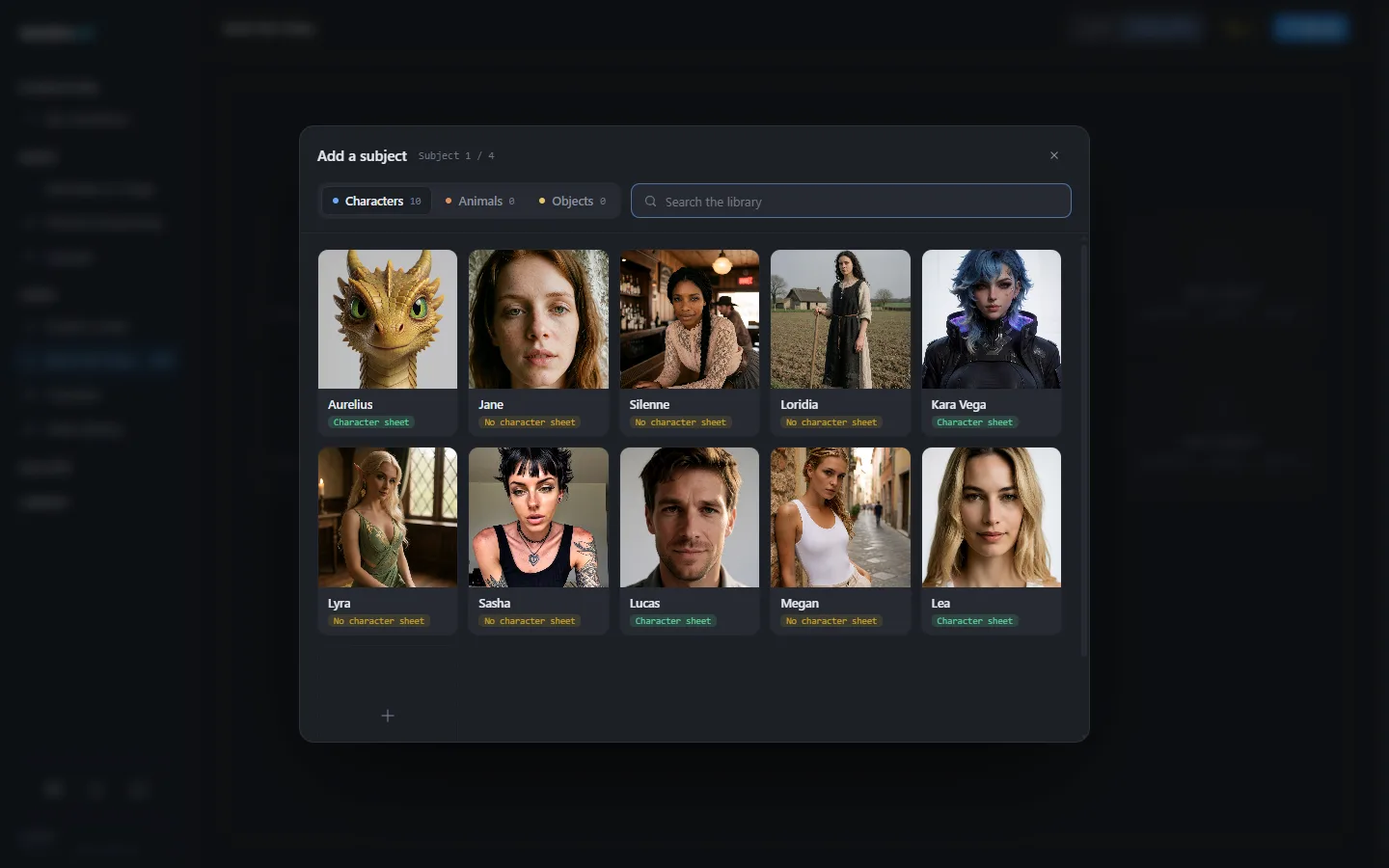
In Multi-Ref Video, use Add a subject (a character, an animal or an object, up to four) and Add a setting (one). Each reference is connected to the generator.
-
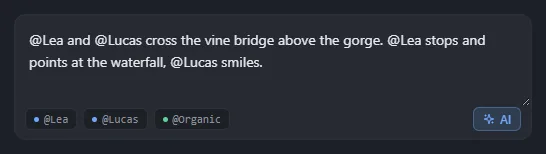
Describe the scene and mention each reference with @ and its name, for example: "@Lea hands a letter to @Lucas on a station platform, evening light".
-
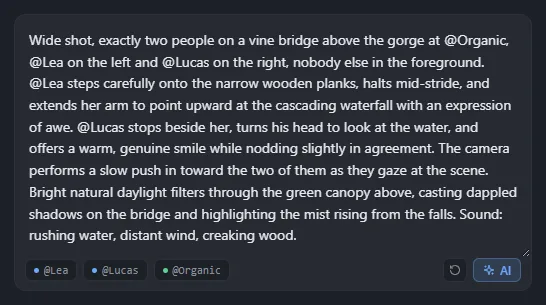
If you want help, the AI button rewrites your idea into a text ready for the video engine (shot, action, camera, light, sound, lines) and keeps the @references. It works online at no credit cost, or offline on your own computer once the local assistant is installed (2.8 GB, at the first click or from Settings > Components).
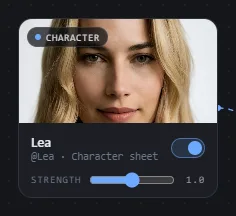
Each reference has a Strength from 0 to 2: 0 ignores it, 1 is normal, above 1 it takes more room in the clip. The seed is automatic by default, a new one per render: fix it to redo the same shot while you change one thing at a time (see seed).
Write the scene
The AI button applies these rules for you. If you write the scene yourself:
- Call each reference by @ and its name. The app links it to its images at render time.
- Say how many people are in the frame and where each one stands ("Lea on the left, Lucas on the right, nobody else in the foreground"). That is what keeps a character from appearing twice.
- One action after another, with visible gestures: the model shows what can be seen, not what is felt.
- A short line of dialogue in quotes, tied to whoever says it: about two to three words per second of clip. Longer, and the speech skips words or turns into a voice-over.
- Describe what is there, never what must not happen: the engine ignores negations.
- A character that is not human (a creature, a dragon): say what it is in the scene, and describe it as such on its profile ("wings, claws, a tail", not "a dragon arm outfit"), otherwise the engine turns it into a person in costume.
- The setting: an image in the video's format (portrait, landscape or square); otherwise it is cropped to the center.
Mode, format and price
- Mode: Quality or Ultra. Fast is not available with several references (see Fast, Quality or Ultra).
- Format: portrait, landscape or square, in 480p (Quality only), 720p or 1080p.
- Duration: automatic, or 5, 10 or 20 seconds, with or without sound.
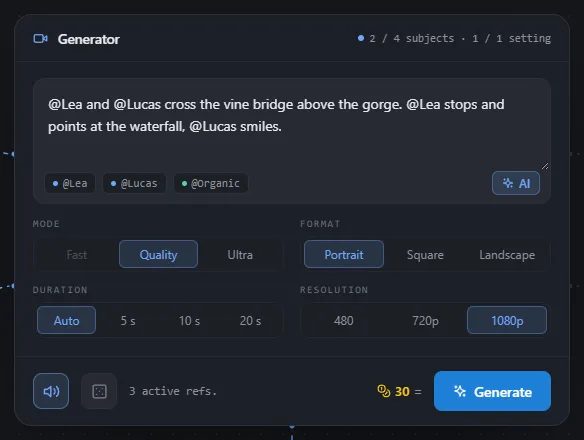
In Quality, a Multi-Ref clip costs the same as a regular clip of the same format (see cloud video). Ultra has its own fixed price per clip in Multi-Ref Video, shown in the app before you render, and runs on Cloud GPU only.
In the demo, Multi-Ref Video can be tried with the free video, in 720p and up to 5 seconds.
On your computer or online
On Windows, Multi-Ref Video can also render on your own graphics card, in Quality mode. It needs a recent NVIDIA card with at least 8 GB and a component downloaded once (2.2 GB, from the tab or from Settings > Components). A local render takes about twice as long as a clip without references. On Mac, local video is not available yet: switch to Cloud GPU.
Online, a render waits up to 30 minutes for a free machine, then has 30 minutes to compute. The progress bar follows the real render time and shows when it is waiting for a machine or finishing the clip. If a render is abandoned, it is cancelled and nothing is charged.
Pick a clip up again
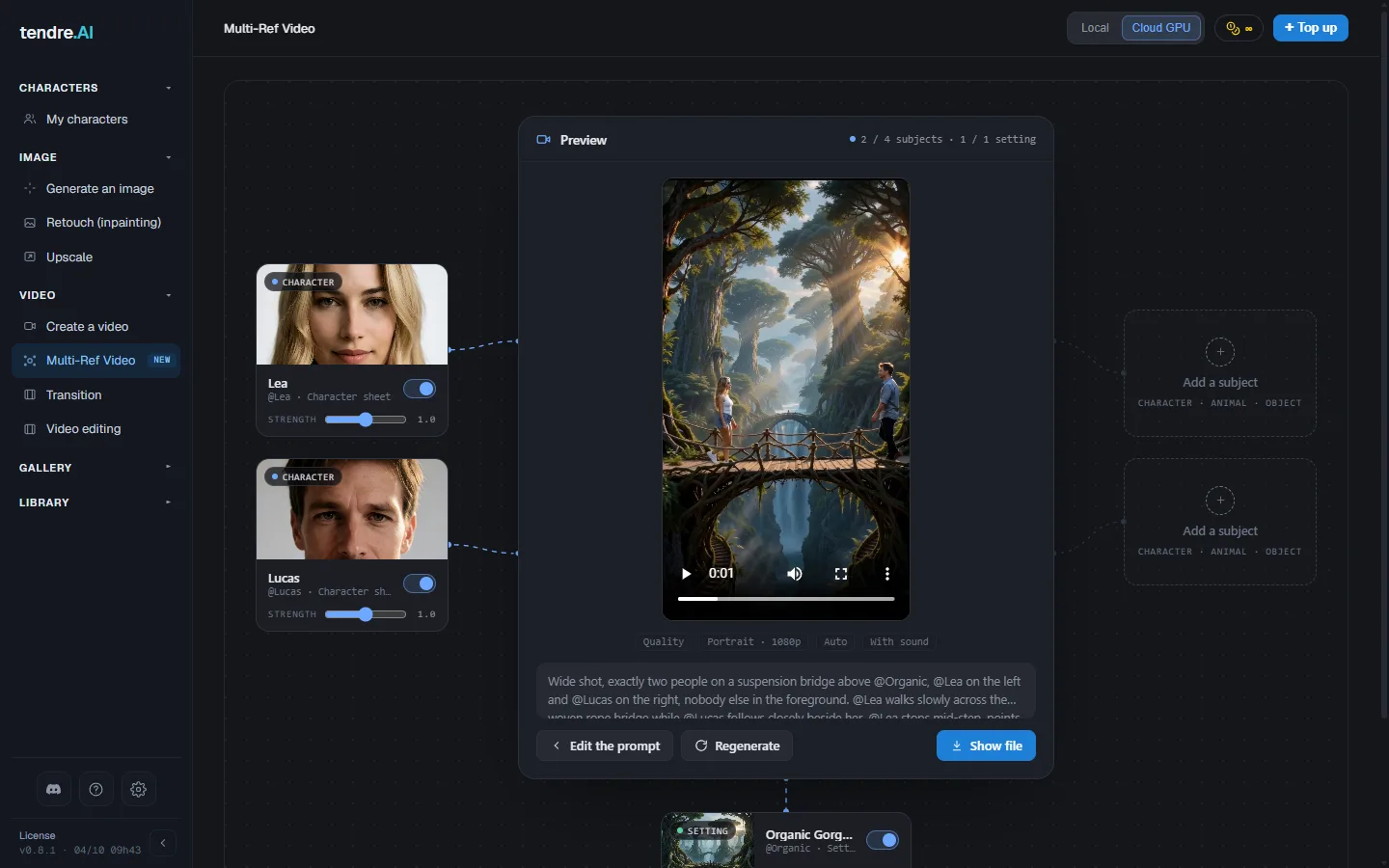
In the Gallery (Videos tab), Reuse on a Multi-Ref clip reopens Multi-Ref Video with its references connected again, along with its text, format and seed. Change one thing, generate again.
For a single character across images and ordinary clips, see character consistency.