Text to image: generate from a prompt
See the feature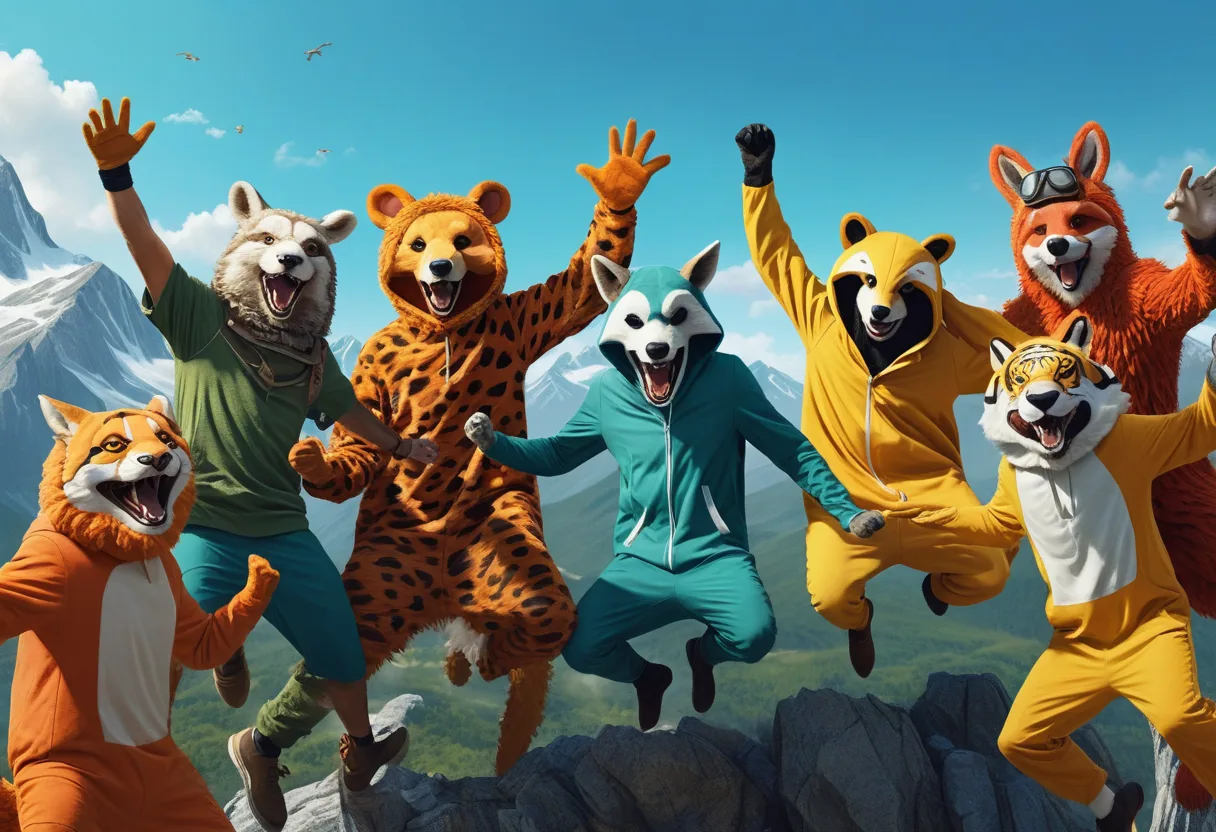
Extreme Close-Up, Summer Mountain Background, Group Shot, seven People Jumping and Celebrating, Wearing Animal Costumes, concept art, digital painting, cinematic, detailed environment
Text to image is the core loop of tendre.AI: you describe a picture in words on the Generate tab, and Stable Diffusion XL renders it on your own NVIDIA GPU through the app's local engine (TendreEngine). Nothing you type or generate leaves your computer.
1. Open Generate and check the engine
Open the Generate tab. TendreEngine (the local image engine) starts on its own; while it warms up you will see a short "Checking TendreEngine..." banner. If it is not running, a Start TendreEngine button appears, click it and wait a few seconds.
2. Write your prompt
Type your description in the Prompt (in English) field: subject, style, light, framing. Leave Character on "None (text only)" for a generic subject, or pick a saved character and a Style preset if you want a specific look.
3. Pick a format
Under Format, choose Square, Portrait or Landscape. This sets the aspect ratio; the base resolution itself is set once in Settings (see Resolutions).
4. Generate
Press Generate. The button switches to "Generating..." and a progress bar tracks the render. Each run uses a random seed unless you lock one (see Seed).
5. Find your image
The result appears in the preview panel on the right and is saved automatically, no extra click, to your output folder and to the Gallery tab, where you can reuse its exact prompt and settings later.
To write stronger prompts, read the Prompting guide. To render several ideas unattended, see Batch and queue.